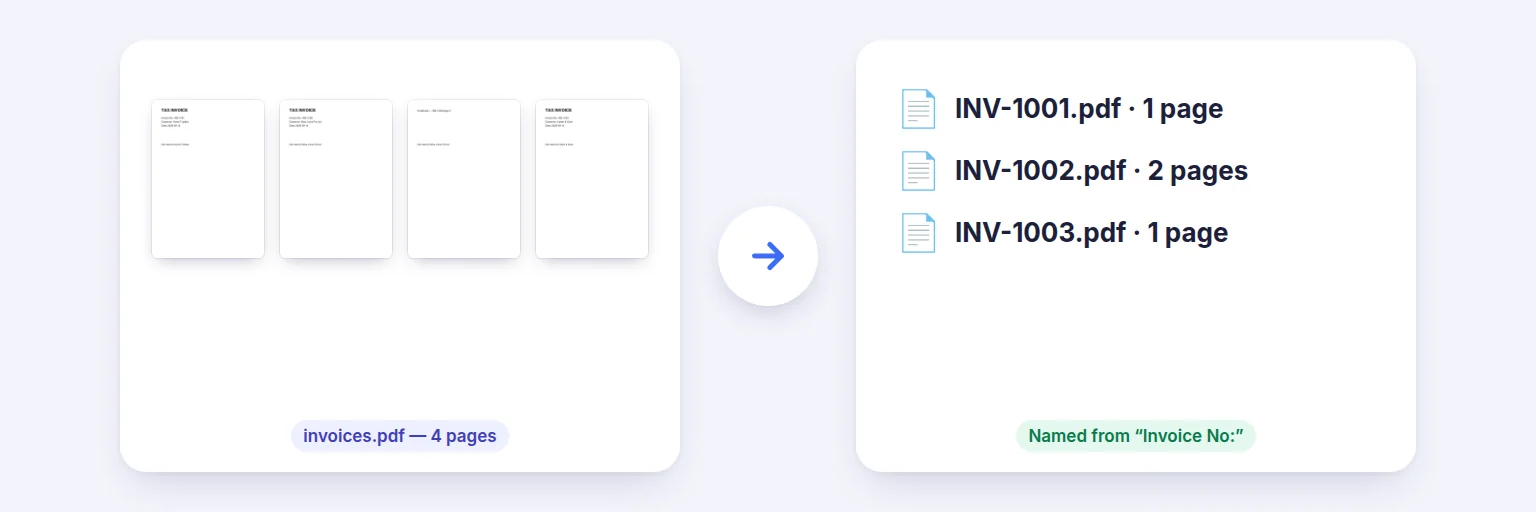
Four pages of invoices → INV-1001, INV-1002 and INV-1003, split where each invoice starts.
Scanned 40 invoices into one PDF? Split it wherever a page says “Invoice No”, at blank separator sheets, every N pages or by bookmarks — and name every file from text inside it, like INV-1001.pdf or the customer’s name. Check every split and name in a table before you save.
Its text is read on your device to find where each document starts.
✂️ Drop a PDF to split, or tap to choose
A batch of invoices, statements, letters or forms in one PDF
The table updates as you type — check the pages and names before saving.
One PDF per part in a ZIP, plus a summary CSV.
🔒 Split and named on your device. Nothing is uploaded.
PDFs up to about 1,500 pages on a computer, less on phones. Text-based rules need selectable text; scanned pages can be read with English OCR first (a few seconds per page). Names keep letters from any language; characters that aren’t allowed in file names (\ / : * ? " < > |) become “-”. Password-protected PDFs need the password removed first.
Four pages of invoices → INV-1001, INV-1002 and INV-1003, split where each invoice starts.
Add the PDF. Its text is read on your device (scanned pages can be read with OCR).
Choose where to split: where a page contains a word or label, at blank separator pages, every N pages, by bookmarks, by ranges or every page.
Choose how to name the files: tap a “Label: value” found on page 1, or type a label — the text after it on each part becomes {a}. Combine it with {n}, {file} or a second label.
Check the table — pages, first-page thumbnail and name for every part — edit any name, then press Split & name and download the ZIP.
💡 Tip: Scanning a stack of separate documents? Put a blank sheet between them and choose “At blank separator pages” — the blanks are dropped automatically.
Ordinary splitters ask for page numbers. Real batches don’t have neat page counts: one invoice is one page, the next is three. Splitting where a page contains a label — “Invoice No”, “Statement period”, “Employee ID” — starts a new file exactly where each document begins. For complex cases, switch on advanced patterns (regular expressions).
A file called “scan-part-7.pdf” is useless in a folder. Choose a label and the text after it on each part becomes the file name: “Invoice No: INV-1003” gives INV-1003.pdf; add “Customer” for INV-1003 Carter & Sons.pdf. Parts where the label isn’t found are marked so you can type a name, duplicates get (2), (3)…, and characters not allowed in file names are replaced. The ZIP includes split-summary.csv listing every part, its pages and its name.
Rules and names need text. If some pages are scans, press “Read scanned pages with OCR” — English OCR runs on your device, a few seconds per page — and the rules then see those words too. Each part is a new PDF with its pages copied as they are (text stays selectable).
Add the PDF, choose “Where a page contains…” and type the word that appears on the first page of each document (for example “Invoice No”). Each match starts a new file.
Yes. Type a label such as “Invoice No” — the text after it on each part becomes the file name. You can combine two labels and the part number, and edit any name before saving.
Yes. Choose “At blank separator pages”. The blank pages are removed from the results.
Yes — press “Read scanned pages with OCR” first so their words can be found (English).
Yes, when the PDF has bookmarks: one file per top-level bookmark, named from the bookmark with {title}.
No. Splitting and naming happen in your browser on your device.
Free tools that pair well with this one.