Before you start: pick photos that merge well
The single biggest factor in a believable result is the photos you start with. Thirty seconds spent choosing better source pictures does more than any setting.
- Faces clearly visible — no sunglasses, hands or hair covering the face, and not blurry.
- Similar angle — two front-facing photos combine far better than one front view and one side profile.
- Similar framing — waist-up with waist-up, full-body with full-body. It makes the scale much easier to match.
- Decent resolution — a normal phone photo is plenty; avoid tiny thumbnails saved from chats or social media.
- No heavy filters — beauty filters and strong color grading make skin tones hard to match.
Method 1: Blend two people into one realistic photo with AI (recommended)
This is the fastest way to get a picture that looks like it was taken in one moment — both people in the same scene, under the same light.
- Open the tool. Use the tool further down this page, or the Combine Two People in One Photo page. Both work in any phone or desktop browser, with nothing to install.
- Make sure the ✨ AI Photo Blend tab is open. The other tab is the free layout merger used in Method 2.
- Upload one photo of each person. Drop both pictures into the upload box — one blend takes up to four photos.
- Tap the “💑 Two people together” style (it is pre-selected on this page). It sets up a natural photo of the two of you side by side.
- Fine-tune if you like. Choose a scene (beach at sunset, cozy living room, park…), the lighting and a shape — Portrait 3:4 suits two people standing. You can also describe the result: “standing close together in a park, afternoon light, both smiling”.
- Press Blend with AI. Most results arrive in 10–40 seconds. Download it — there is no watermark.
- Not quite right? Try again. Every retry is a new variation, and failed generations never cost a try or a credit.
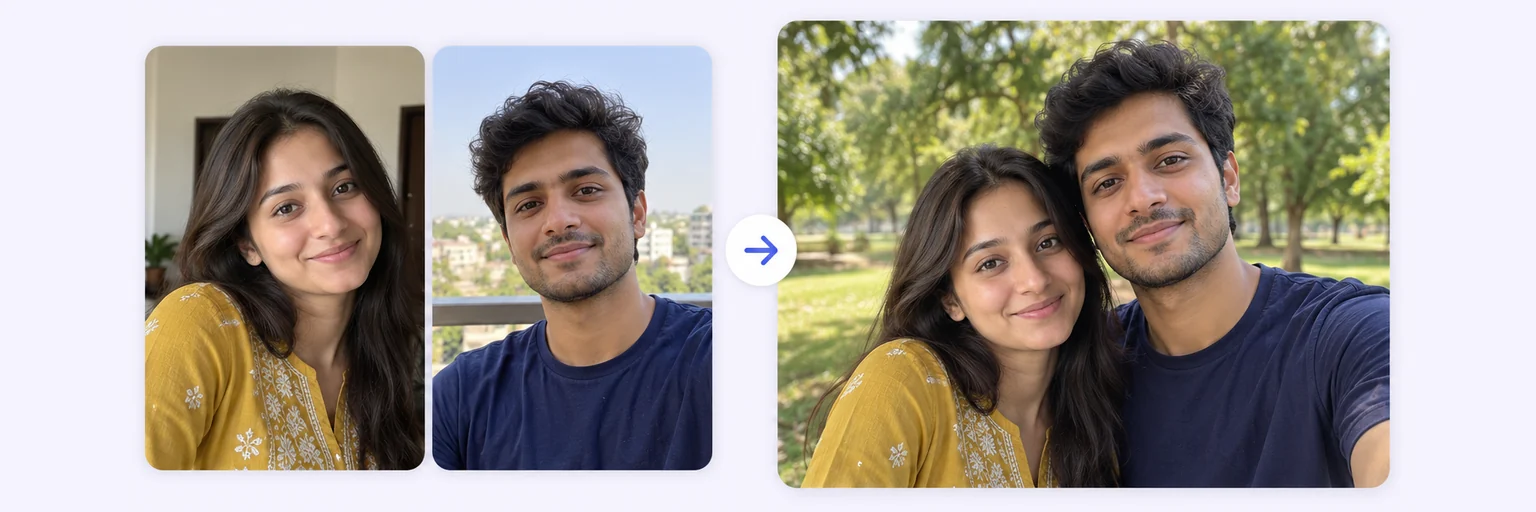
Planning to print or frame it? Set Quality to 💎 Best — 2K (2 credits) or 🏆 Ultra — 4K (4 credits) before blending, for a much sharper file at poster size.
Method 2: Put two photos side by side for free (no AI)
Sometimes you don't need a new scene — you just want both people in one frame: a “then and now”, a matching pair for a status update, or a comparison. The free layout merger does it instantly and never uploads your photos.
- In the tool below, switch to the 🖼️ Free Layout Merger tab (or open the AI Photo Merger).
- Drop in both photos — anything from 2 to 8 works.
- Choose Side by side, Stacked or 2-column grid, then adjust spacing, rounded corners and the background color.
- Pick JPG, PNG or WebP and download — full quality, no watermark, unlimited and free forever.
The difference from Method 1: the photos stay as two separate pictures placed next to each other, so they won't share a background or lighting.
Method 3: Combine two people manually in a photo editor
If you want pixel-level control and have the time, you can do it by hand in any editor with layers and masks, such as Photoshop, GIMP or the free browser-based Photopea:
- Open the photo you want as the background and paste the second person in as a new layer.
- Cut the person out with a selection tool, then refine the edges — especially hair — with a layer mask.
- Scale them so heads and shoulders match; people standing side by side usually have their eyes at a similar height.
- Match brightness, contrast and color temperature so both people look lit by the same light.
- Paint a soft shadow where the added person meets the ground or touches the other person.
Expect 30–90 minutes for a convincing result; hair edges and lighting are the hard parts. That is exactly the work the AI method automates.
Which method should you use?
| Method | Time | Cost | Looks like one photo? | Best for |
|---|---|---|---|---|
| AI blend | 10–40 seconds | Free tries, then credits | Yes — shared scene and light | Couples, friends and family moments that never happened |
| Side-by-side collage | Under a minute | Free, unlimited | No — two framed photos | Then-and-now pairs, comparisons, social posts |
| Manual editing | 30–90 minutes | Free to paid software | Yes, with editing skills | Designers who need full control |
How to make the merged photo look real
- Describe the moment, not just the place. “Hugging at a train station, evening light” gives the AI far more to work with than “together”.
- Mention height or position when it matters — for example, “she is shorter and stands on the left”.
- Pick the right shape. Portrait 3:4 for two people standing, Wide 16:9 when the background is the star.
- Use photos from a similar era — or restore old pictures first with our guide to combining old and new photos.
- Make two or three variations and keep the most natural one. Small differences in pose change everything.
Common mistakes to avoid
- Using screenshots or tiny images — detail lost to compression can't be recovered.
- Mixing a close-up selfie with a full-body shot — a scale mismatch is the number-one reason merges look pasted.
- Using this style for three or more people — follow the group photo guide instead.
- Starting from scratch when you already have the scene — to place someone into an existing picture, see how to add a person to a photo.
Popular ways people use it
- Couples — a first photo together before you meet; see making a couple photo from two selfies or the couple photo merge.
- Friends in different countries — the reunion picture you haven't been able to take yet.
- Grandparents and a new baby — when travel isn't possible.
- Remembering someone — a gentle picture with a loved one who has passed, using the memorial photo merge.
The tool is below. Free tries every day, no signup.