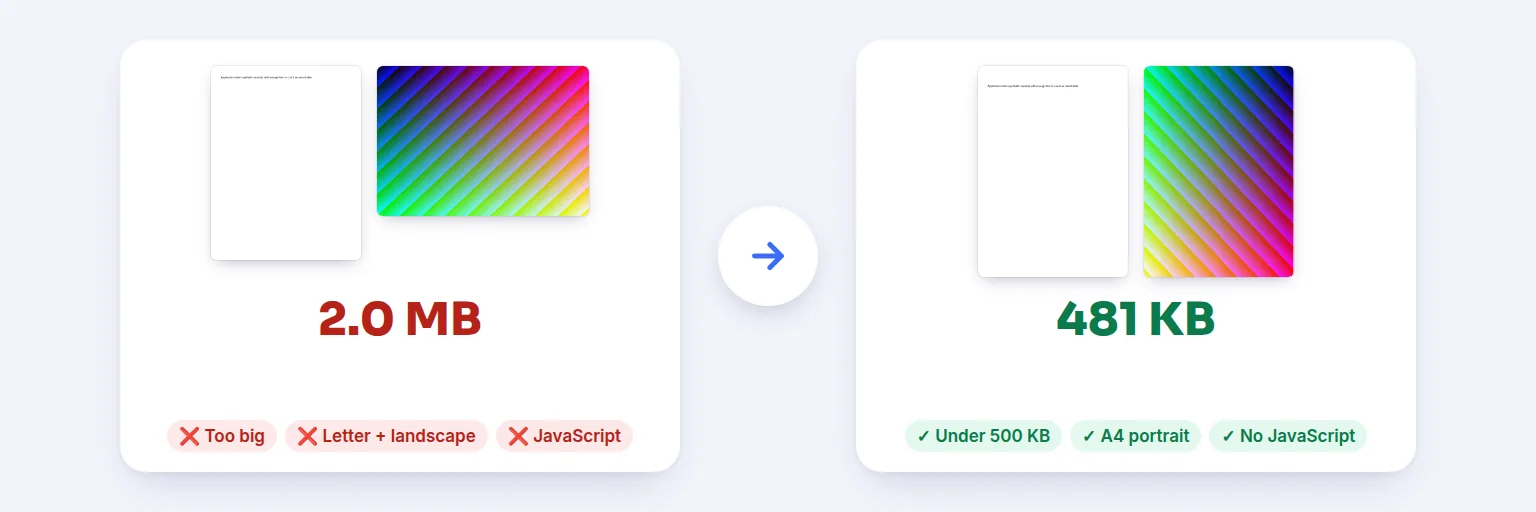
A 2 MB PDF a portal rejected → 481 KB, A4 portrait, no JavaScript — checked again after fixing.
Online forms reject PDFs for reasons they rarely explain: too big, wrong page size, password-protected, not searchable, fonts missing, a scan that’s too blurry, even a file name with spaces. Set the form’s rules, see every problem in plain words, and fix what can be fixed — then the fixed file is checked again before you download it.
Nothing is uploaded — the check runs on this device.
✅ Drop the PDF you need to upload, or tap to choose
Up to 20 PDFs at once — each is checked against the same rules
Size, pages, page size, orientation, searchable text, fonts, active content, scan resolution and file name.
Copy the rules from the form you are uploading to. Quick starts (always check the real rules):
Every rule is explained in plain words. Fixes are checked again before you download.
🔒 Checked and fixed on your device. Nothing is uploaded.
Up to 20 PDFs and about 500 MB in total on a computer, less on phones. Compression only re-encodes photos and scans inside the PDF; text and fonts are kept. Missing fonts, low scan resolution, PDF/A and too many pages can’t be fixed automatically — the report says what to do instead. Scan resolution is estimated from the page images. Password-protected PDFs can’t be opened here.
A 2 MB PDF a portal rejected → 481 KB, A4 portrait, no JavaScript — checked again after fixing.
Add the PDF (or several) you need to upload.
Copy the rules from the upload page: maximum size, pages, page size, orientation, whether text must be searchable, fonts embedded, no active content, minimum scan resolution and file-name rules. Quick-start presets fill in typical values.
Press Check PDFs. Each rule shows ✅, ❌, ⚠️ or ℹ️ with an explanation and, where possible, the fix.
Press Fix what can be fixed. The fixed file is checked again against the same rules — then download it (or all of them as a ZIP).
💡 Tip: If a form says “maximum 200 KB” and your scan is 3 MB, the fixer compresses only the photos and scans inside the PDF — text stays selectable. If it still can’t reach the limit without becoming unreadable, it says so; re-scan in black-and-white or grayscale at 150–200 DPI.
Fixed automatically: file size (photos and scans are re-compressed, gentlest first — text, fonts and links are kept), page size (pages are scaled onto A4 or Letter, never cropped), orientation (pages are turned), JavaScript and attachments (removed), form fields (flattened so their values stay visible), hidden details (removed) and the file name (rewritten with safe characters).
Not fixable afterwards, so the report tells you what to do instead: missing fonts and PDF/A (re-save from the original program with fonts embedded or as PDF/A), scan resolution (re-scan at the required DPI), too many pages (remove or split pages), and scanned pages that must be searchable (make them searchable with OCR).
The check and every fix run in your browser. Exam forms, ID proofs, payslips and contracts are exactly the documents you shouldn’t upload to a random website just to find out why another website rejected them. Rules vary between portals — always confirm the exact limits on the site you are uploading to; the presets are only typical starting points.
Add the PDF above and set the maximum size the form allows. The checker shows the exact size and whether it fits — and can compress it to fit without making text unselectable.
Common reasons are: file too large, password protection, wrong page size, scanned pages without searchable text, missing fonts, JavaScript or attachments inside, or a file name with special characters. This checker tests all of them and explains each result.
Yes — set the size limit and press Fix. Photos and scans inside are re-compressed step by step until the file fits; text stays sharp and selectable. If the limit can’t be reached without blurring small print, you’re told the smallest readable size.
Yes. Choose A4 (or Letter) as the page size and press Fix: every page is scaled onto that paper size, keeping its proportions.
The checker finds pages without searchable text and links to Make PDF Searchable, which adds an OCR text layer on your device.
No. Open the PDF with its password in your PDF reader and save or print a copy without protection, then check that copy.
No. Checking and fixing happen in your browser on your device.
Free tools that pair well with this one.