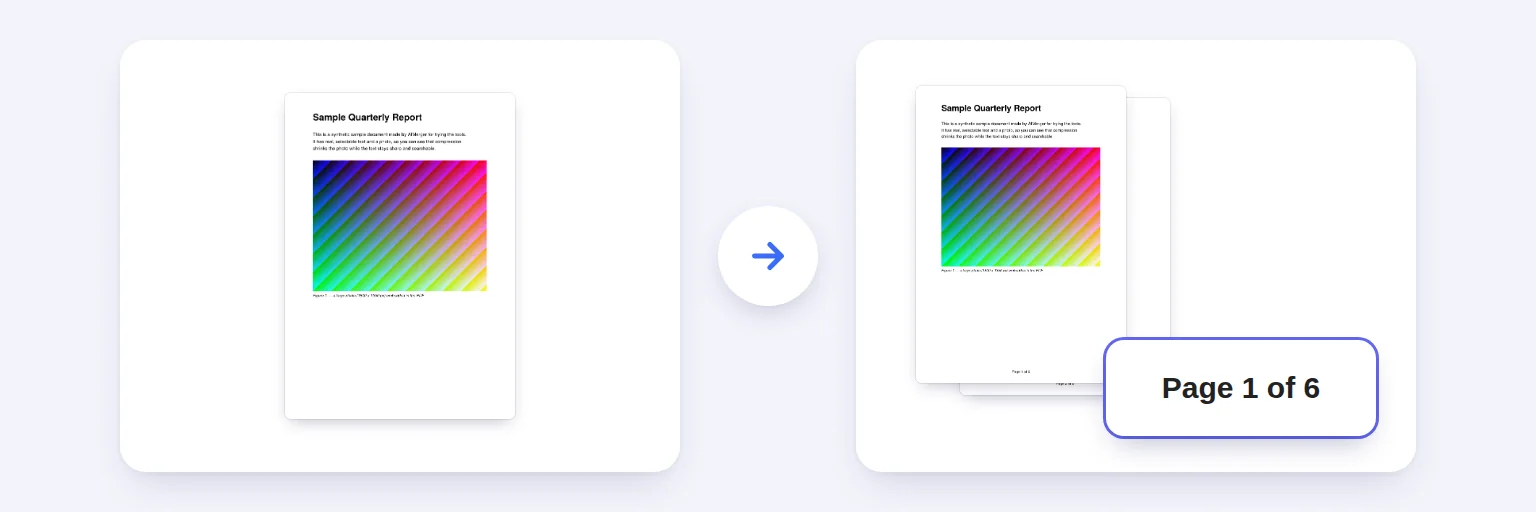
“Page 1 of 6” on every page, in the position and style you choose.
Number the pages of any PDF in a few seconds: choose the position, style (1, “Page 1 of 20”, 1 / 20…), size and where numbering starts. Text and links stay exactly as they were, and the numbers are upright even on rotated pages.
Text, links and form fields are kept — the numbers are added on top.
🔢 Drop a PDF here, or tap to choose
Several PDFs are combined in the order shown, then numbered
🔏 Adding numbers changes the PDF, so a digital signature will no longer be valid.
Rotated pages are handled: numbers always appear upright where you chose.
Skipping a cover? Set “Start on page” to 2 and “First number” to 1. The PDF’s own page labels are set to match, so viewers show the same numbers.
The page is saved with the numbers; nothing else changes.
🔒 Numbered on your device. Nothing is uploaded.
Up to about 1,500 pages and 500 MB on a computer, less on phones. Password-protected PDFs need the password removed first. Numbers use a standard font (Helvetica).
“Page 1 of 6” on every page, in the position and style you choose.
Add your PDF (add several to combine them first).
Choose the position — top or bottom, left, centre or right — and the style, such as “Page 1 of 20”.
To leave a cover unnumbered, set Start on page to 2 and First number to 1. The preview shows exactly where the number goes.
Press Add page numbers and download.
💡 Tip: Printing double-sided and binding? Bottom centre works on both left and right pages; corner positions look best on single-sided documents.
Besides printing the numbers on the pages, the tool sets the PDF’s page labels, so when you skip a cover your reader’s page box shows “1” on the first numbered page instead of “2”. Pages before the start get roman numerals in that box and no printed number. Rotated (landscape) pages are handled, so numbers always appear upright in the position you chose.
For a cover page, a clickable table of contents and bookmarks, use the PDF Bundle Builder. To make the numbered file small enough for an upload limit, continue in Merge & Compress.
Numbers are drawn in a standard font (Helvetica) and digits only; text in the document is untouched and stays selectable. A digitally signed PDF will no longer have a valid signature after any change. Password-protected PDFs need the password removed first.
Add the PDF above, choose a position and style, and press Add page numbers. Download the numbered PDF — free, with no watermark and nothing uploaded.
Yes. Set “Start on page” to the first page that should get a number, and “First number” to the number it should show.
Yes — choose “Page 1 of 20” (or “1 of 20”, “1 / 20”). The total counts the numbered pages.
No. The numbers are added on top; text, links and form fields are kept.
They are handled: the number appears upright, in the position you chose, as you see the page.
No. Numbers are added in your browser on your device.
Free tools that pair well with this one.