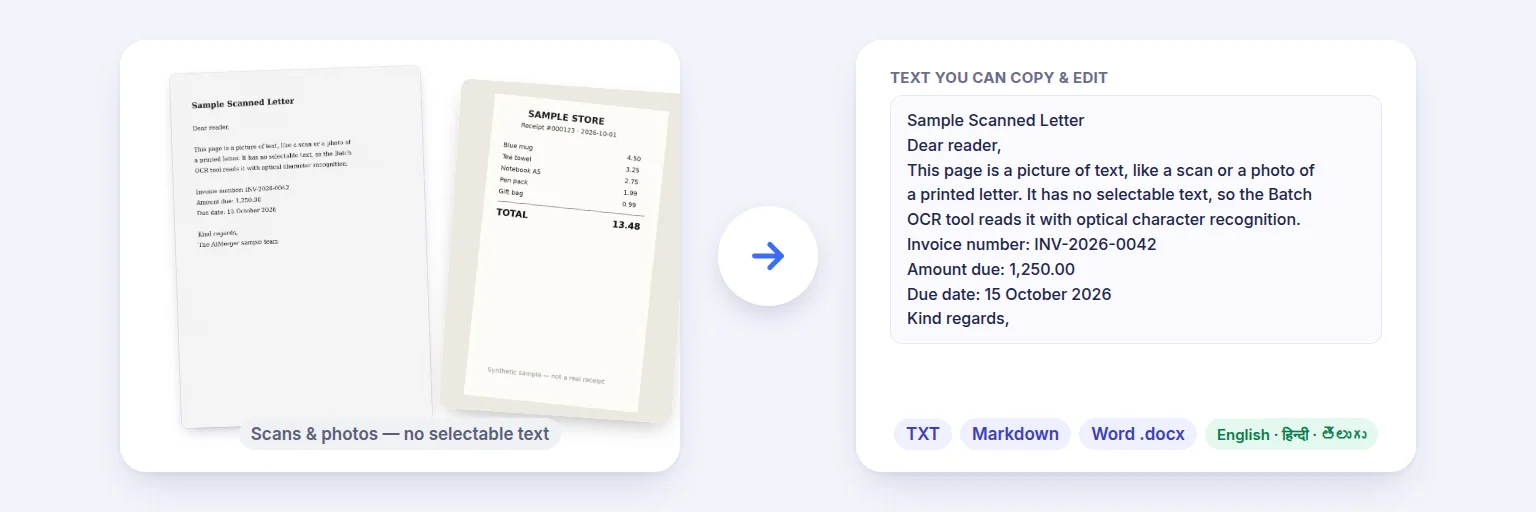
A scanned letter and a receipt photo → text you can edit, copy or download.
Add photos of documents, screenshots or scanned PDFs and get all their text in one file — TXT, Markdown or Word — with each file’s name and page number kept. PDFs that already contain text are read exactly; only real scans go through OCR, on your own device.
File names and page boundaries are kept in the result.
🔤 Drop images or scanned PDFs here, or tap to choose
JPG · PNG · WebP · iPhone HEIC · BMP · PDF
Pages in reading order — drag or use ◀ ▶ to reorder, ↻ to turn a sideways page upright, ✕ to skip it.
English, Hindi, Telugu — or English mixed with either on the same page.
OCR is good with clear printed text. Handwriting, complex tables, very small print and poor photos need checking — every page is shown below for you to correct. The original layout (columns, tables) is not kept; you get the text in reading order, page by page.
Edit any page before you download one combined file.
🔒 Text is recognised on your device by an open-source OCR engine. Your files and the text are never uploaded.
Up to 60 files and about 300 pages at once on a computer, less on phones. Each scanned page takes a few seconds. The OCR engine and language data are downloaded once from aimerger.com (about 7 MB for English; Hindi and Telugu add about 1.5–2 MB each).
A scanned letter and a receipt photo → text you can edit, copy or download.
Add images (JPG, PNG, WebP, iPhone HEIC) or PDFs. Every page appears as a thumbnail — reorder them, turn sideways pages upright, or skip pages you don’t need.
Choose the language. Keep “Use the PDF’s own text” on so digital PDFs are read exactly and instantly.
Press Extract text. The first run downloads the OCR engine and language data once; after that it starts straight away.
Review each page — pages marked ⚠️ may need correcting — then download TXT, Markdown or Word, or send it straight to Merge Files for AI.
💡 Tip: For best results use well-lit, straight-on photos or 300 DPI scans. If a scan is faint or greyish, tick “Boost contrast”. Rotate sideways pages before running OCR — it is faster and more accurate.
OCR (optical character recognition) reads printed text from pictures. It is very good with clear, printed documents — letters, invoices, book pages, screenshots — and needs checking with handwriting, very small print, unusual fonts, low-light photos and complex tables. Every page is shown with its confidence score so you can correct it before downloading. The original layout — columns, tables, fonts — is not reproduced; you get the text in reading order, page by page, with the file name and page number above each page.
Most online OCR services upload your documents. Here, a well-known open-source OCR engine (Tesseract, compiled to WebAssembly) runs in a background worker in your browser. The engine and language data are downloaded once from aimerger.com — about 7 MB for English — and your browser keeps them, so later runs work offline. Your files and the recognised text never leave your device.
English, Hindi (Devanagari) and Telugu are available, alone or mixed with English on the same page. Each language was added only after it read our printed test pages — clean and deliberately blurred, low-resolution, photo-like copies — without errors. Real documents vary: decorative fonts, old typewritten pages and handwriting will still need checking. Hindi or Telugu data is about 1.5–2 MB extra and downloads only when you choose it.
For PDFs created digitally (not scanned), any language works — the text is read directly from the PDF, without OCR.
Add all the images above and press Extract text. You get one document with every image’s text under its file name, which you can download as TXT, Markdown or Word.
Yes. Pages with no text layer are rendered at 300 DPI and read by OCR. Pages that already contain text are read directly, which is exact and instant.
For clear printed text it is usually very accurate. Handwriting, tiny print, complex tables and blurry photos may contain mistakes — pages with low confidence are marked so you can check them.
No — it extracts the text in reading order, page by page. Columns and tables are not rebuilt.
Yes. Choose Hindi, Telugu, or English mixed with either. The language data (about 1.5–2 MB each) downloads the first time you use it.
The OCR engine and language data (about 7 MB for English) download automatically from aimerger.com the first time and are then kept by your browser.
No. OCR runs in your browser on your device; your files and their text are never uploaded.
Free tools that pair well with this one.