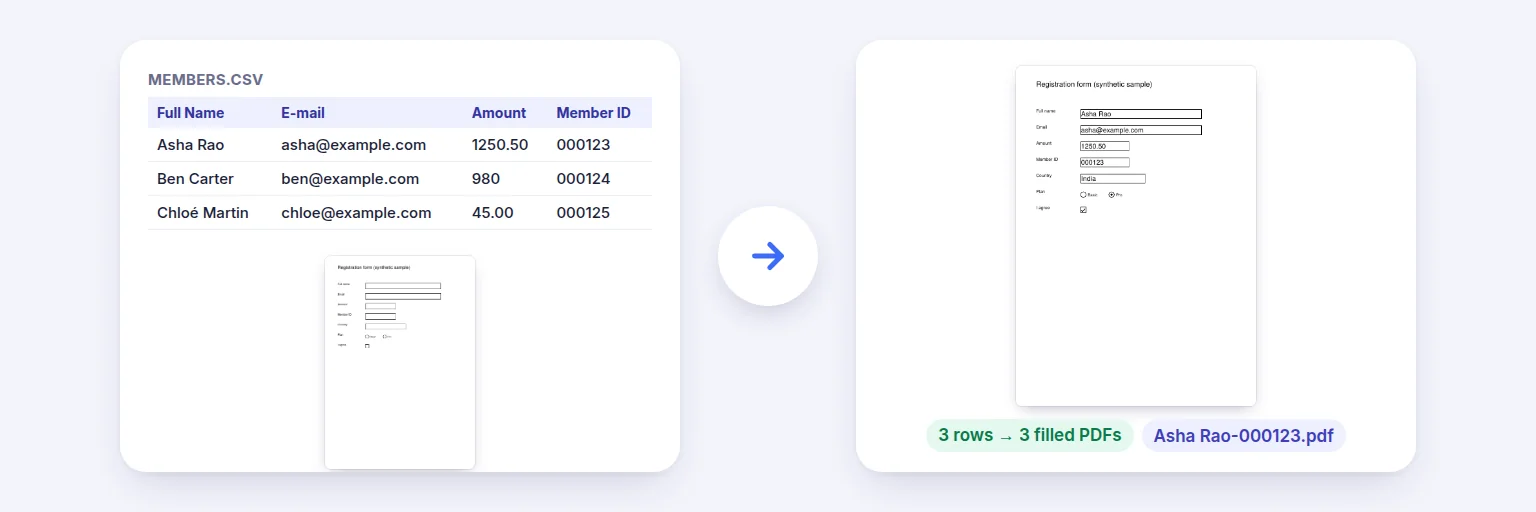
A fillable form + a 3-row CSV → three filled PDFs, named from the columns.
Have a fillable PDF form and a spreadsheet of people, orders or students? Match the form’s fields to your columns once, check a real preview, and get one filled PDF for every row — named from your columns, flattened if you like, in one ZIP. PDFs without fields work too: place column values on the page.
Fields are detected automatically: text, check boxes, choices and drop-downs.
1 · The PDF form
🧾 Drop the PDF form
A fillable PDF — or any PDF for text placement
2 · The data
📊 Drop the spreadsheet
Excel .xlsx/.xls, .ods or CSV — one row per filled PDF
Columns with the same (or similar) names are matched for you. The preview is a real filled form.
Click on the preview where the value should start. Fine-tune X and Y (points from the top-left) below.
File names can use any column in braces, e.g. {Full Name}-{Member ID}, and {row} for the row number. Data: .
Rows with values that don’t fit a field are listed — nothing is dropped silently.
🔒 Filled on your device. Your form and your data are never uploaded.
Up to a few thousand rows on a computer (about 1,000 on phones). Values are written with the standard PDF font (Helvetica); characters it can’t draw — Hindi, Telugu, emoji — are drawn as sharp pictures when flattening, or left for PDF readers to display when not flattening. Signature fields and buttons are not filled. Leading zeros in IDs are kept. Password-protected PDFs need the password removed first.
A fillable form + a 3-row CSV → three filled PDFs, named from the columns.
Add the PDF form and the spreadsheet (Excel, OpenDocument or CSV). Pick the sheet and header row if needed.
Check the matches: each PDF field is matched to the column with the same or a similar name. Change any match with the drop-down. Check boxes tick for yes / true / 1 / x / ✓.
Choose the output — one PDF per row (ZIP) or one combined PDF — and the file-name pattern, such as {Full Name}-{Member ID}. Look at the preview of any row.
Press Fill PDFs and download. Rows with values that didn’t fit a field (a choice that isn’t on the list, text too long) are listed.
💡 Tip: Name your spreadsheet columns like the form fields (for example “FullName” and “Full Name” both match) and the mapping is done for you. Keep IDs as text in Excel so leading zeros (000123) survive — CSV files keep them automatically.
Word’s mail merge makes letters; it can’t fill a PDF form someone else designed — a government form, a certificate template, an enrolment or claim form. This tool fills the form’s own fields from each row, so the result looks exactly like the original form filled in by hand, and creates one file per person with a sensible name.
Flattening turns the filled values into part of the page: they look the same in every PDF reader and can’t be changed — usually what you want before sending. Leave it off if people should still be able to edit their form. A combined PDF is always flattened, because many copies of the same form fields can’t live in one file.
Many forms are just a scan or a flat PDF. Choose Place text on the page, pick a column and click where its value should go — repeat for each column, and fine-tune the position in points. Values are drawn with Helvetica; text in other scripts is drawn as a sharp picture.
Add the fillable PDF and your Excel file above, check that each field is matched to the right column, and press Fill PDFs. You get one filled PDF per row in a ZIP, named from columns you choose.
Yes — it’s mail merge for PDF forms: every row of your spreadsheet fills a copy of the form. The result can be one PDF per row or one combined PDF.
Yes. CSV, TSV, Excel (.xlsx, .xls) and OpenDocument (.ods) all work.
Use “Place text on the page”: click where each column’s value should go. It works with scanned and flat PDFs.
Yes. Check boxes tick for yes/true/1/x/✓; drop-downs and radio buttons are set when the value matches an option. Values that don’t match are listed by row.
Yes — type a pattern like {Full Name}-{Member ID}. Any column in braces works, plus {row}.
No. Everything is filled in your browser on your device.
Free tools that pair well with this one.