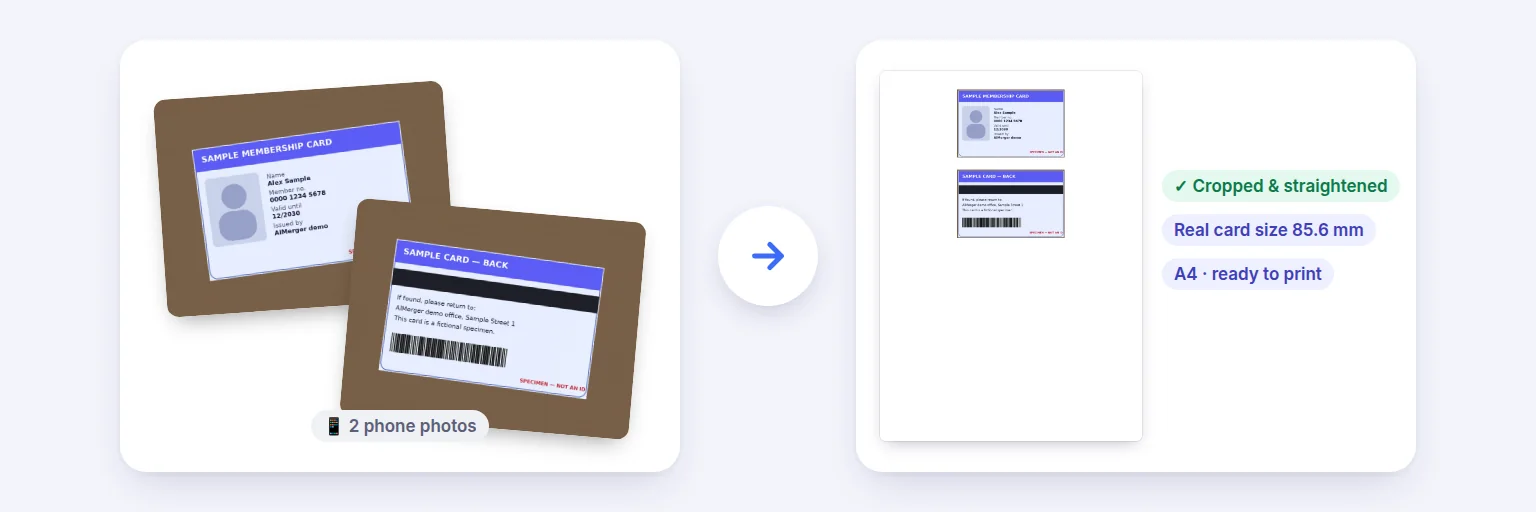
Two phone photos → both sides cropped, straightened and placed at real card size on one A4 page.
Photograph or scan both sides of a card — Aadhaar, PAN, a driving licence, a student or employee ID — and get one neat A4 or Letter page with both sides at their real size, ready to print or upload. Crop, rotate and straighten each side; the card is never stretched, and the images never leave your device.
A phone photo or a scan of each side. Crop, rotate and straighten until each side fills its box.
Front
🪪 Front: drop a photo or scan
JPG · PNG · WebP · HEIC · or a 1-page PDF
Back
🪪 Back: drop a photo or scan
JPG · PNG · WebP · HEIC · or a 1-page PDF
Drag the dashed box to crop, use its corners to resize (or Tab to it and use the arrow keys; Shift + arrows resizes). Adjust only so the card is easy to read — never change what is printed on it.
Real card size by default, so a printed copy matches the original. Proportions are always kept — nothing is stretched.
PDF or JPG, with an optional file-size limit for upload forms.
When printing, choose “Actual size” / 100% so the card comes out at its real size.
🔒 Your card images are processed on this device and never uploaded or stored.
Two phone photos → both sides cropped, straightened and placed at real card size on one A4 page.
Tap Front and choose a photo or scan of the front of the card (on a phone you can take the photo directly). Do the same for Back.
Drag the dashed box so it hugs the edges of the card, then use ⟲ / ⟳ and Straighten until it is level. Brightness and contrast help with dark photos.
Choose the paper (A4, US Letter or custom), “Front above back” or “Side by side”, and the card size — Real card size prints exactly 85.6 mm wide, like the original.
Press Create page. Save it as PDF or JPG — with a maximum file size if a form demands one — or press Print and choose “Actual size”.
💡 Tip: For the sharpest copy, photograph the card on a dark, plain surface in daylight, straight from above, filling most of the frame. Avoid flash — it causes glare on laminated cards.
Banks, telecom shops, employers, colleges and visa forms often ask for “a copy of your ID, front and back on one page”. Photocopiers do it with two passes; this tool does it with two phone photos. Each side is cropped to the card’s edges and placed on the page at the real ID-1 card size (85.6 × 53.98 mm), or larger if you prefer, with even margins and spacing. The shape always follows your crop — it is never squashed or stretched to fit.
You can crop, rotate, straighten, and adjust brightness and contrast so the card is easy to read. There are deliberately no tools for editing what is printed on a card. Only make copies of your own documents, or documents you are authorised to handle, and share them only with people who need them.
This tool is not affiliated with UIDAI, the Income Tax Department or any issuing authority. It doesn’t download or create ID cards — it only lays out photos you provide.
Many upload forms accept only 100 KB, 200 KB or 500 KB. Choose a maximum file size and the tool lowers the resolution and JPEG quality step by step until the file fits, and tells you honestly if it can’t without making the text unreadable. For printing, use “Actual size” or 100% in the print dialog; “Fit to page” would enlarge the card.
Your photos are processed on your own device. Nothing is uploaded, nothing is stored, and closing the tab clears them. Avoid using shared or public computers for identity documents.
Add a photo of each side above, crop and straighten them, keep “Real card size” and A4, then press Print and choose “Actual size” (or 100%). Both sides print on one page at the size of the original card.
Yes. Add photos or scans of both sides, choose PDF, and download. Set a maximum file size such as 200 KB if the website asks for one. This tool isn’t connected to UIDAI or the Income Tax Department — it only arranges the photos you add.
No. The proportions always follow your crop. You choose the printed width — the real 85.6 mm, as large as fits, or a custom width — and the height follows.
Choose JPG and a 100 KB limit. The tool reduces resolution and quality step by step until it fits; if it can’t without making the card unreadable, it tells you the smallest size it reached.
No. Everything happens in your browser on your device. Nothing is sent to a server or kept after you close the page.
Yes — choose “Side by side”. Landscape paper gives more room for larger copies.
Free tools that pair well with this one.