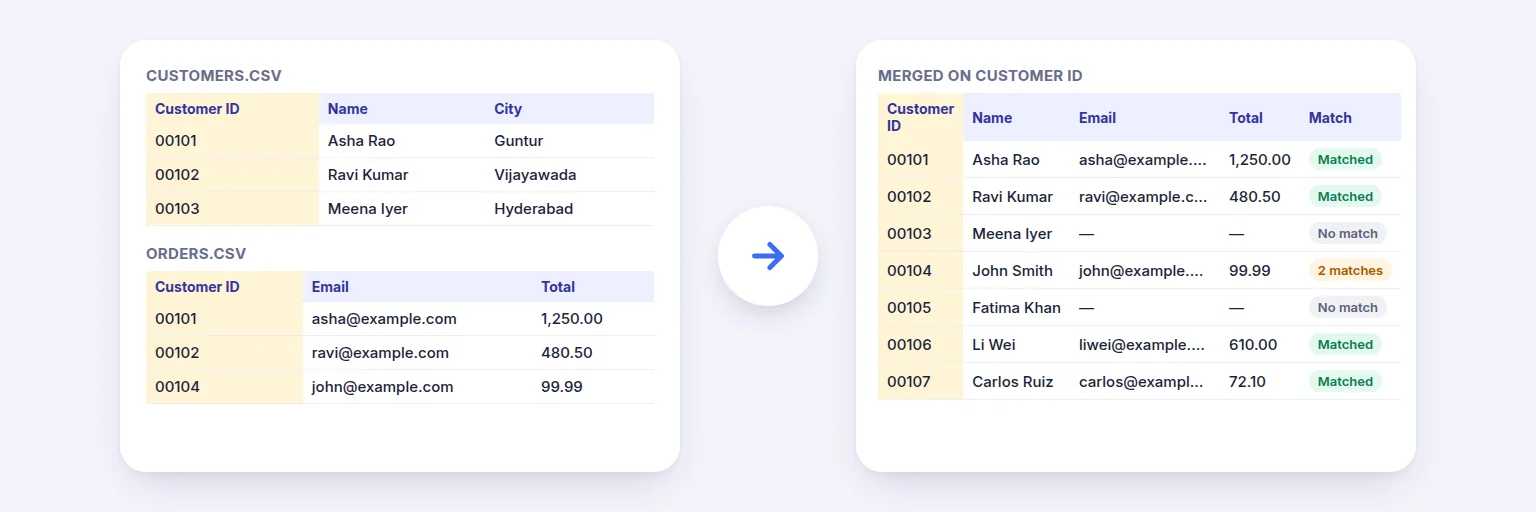
Two files sharing a Customer ID → one table, with a match status on every row.
Bring columns from one spreadsheet into another by matching a shared value — a customer ID, email, roll number or SKU. It works like VLOOKUP or XLOOKUP, without writing formulas, and shows exactly how many rows match before you merge.
Choose the sheet and which row holds the column names. You see the first rows of each file.
File 1 — your main list
📊 Drop file 1 or tap to choose
Excel .xlsx/.xls, .ods or CSV
File 2 — where the extra columns come from
📊 Drop file 2 or tap to choose
Excel .xlsx/.xls, .ods or CSV
The numbers below update as you change options — before anything is merged.
Unmatched rows are kept in their own sheets so nothing goes missing.
🔒 Both files are read and matched on your device. Nothing is uploaded.
Up to about 80 MB per file and a few million cells on a computer (less on phones). Values are copied as shown; formulas, colours and number formats are not carried over. Password-protected workbooks need the password removed first.
Two files sharing a Customer ID → one table, with a match status on every row.
Add file 1 (the list you want to keep) and file 2 (the list with the extra columns). Excel, OpenDocument and CSV all work. Pick the sheet and the header row if needed.
Choose the matching column in each file — for example Customer ID = Cust ID. Add a second matching column if one isn’t unique (first name + date of birth, say).
Choose which rows to keep and which columns to bring from file 2. The live summary shows how many rows match, how many don’t, and whether any value appears more than once.
Press Merge files, check the preview, and download Excel (with the unmatched rows in their own sheets) or CSV.
💡 Tip: If fewer rows match than you expect, the summary says whether ticking “Ignore extra spaces” or “Ignore upper/lower case” would help. IDs that look the same but differ only by leading zeros (00123 vs 123) are deliberately not treated as equal.
VLOOKUP needs the lookup column on the left, breaks when someone inserts a column, and silently takes the first match when a value repeats. Here you pick the matching columns by name, choose exactly which columns to bring across, and see the duplicate situation before merging. You can match on several columns at once, keep every row from both files (a “full outer join”), or only the rows that match.
Values are copied as you see them in Excel. Formulas are not copied — their last calculated values are used. Cell colours, fonts and number formats (such as currency symbols) are not carried over; the numbers themselves are. Merged cells keep the value of their top-left cell only. CSV files are read as UTF-8 (or Windows-1252 if they aren’t valid UTF-8) and the separator — comma, semicolon, tab or pipe — is detected automatically.
CSV downloads protect against “formula injection”: a cell that starts with =, +, - or @ and isn’t a number gets a leading apostrophe so a spreadsheet won’t run it as a formula. You can switch this off.
Add both files above, choose the matching column in each (for example Employee ID), tick the columns to bring over, and press Merge files. You get one sheet with the combined columns, plus separate sheets listing rows that didn’t match.
It gives the same result as VLOOKUP or XLOOKUP when each ID appears once — without formulas. It also handles cases VLOOKUP hides: repeated IDs, matching on two columns, and keeping rows that exist only in the second file.
You decide before merging: use the first match, create one row per match, or leave the row empty and mark it as ambiguous. The summary shows how many rows are affected and gives examples.
Yes. Values are kept as text exactly as they appear, so IDs, PIN codes, phone and account numbers are never changed into numbers or rounded.
Yes. Each file can be .xlsx, .xls, .ods or CSV/TSV, and you can download the result as Excel or CSV.
No. Both files are read and matched in your browser, on your device.
Free tools that pair well with this one.