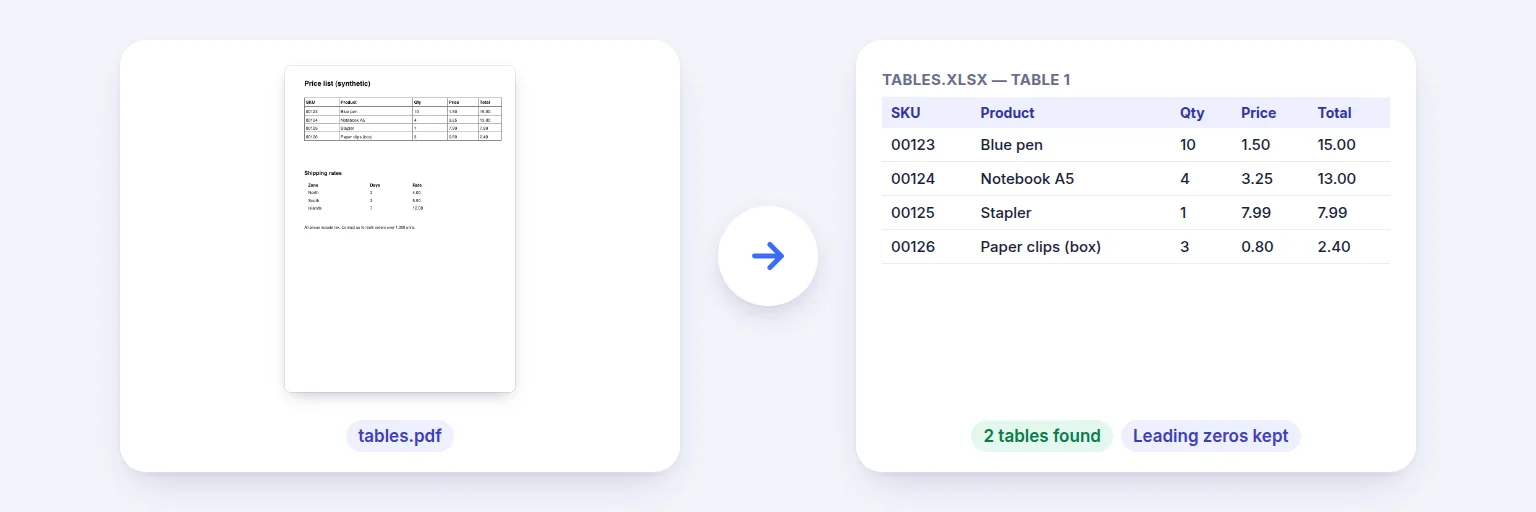
A price list PDF → an Excel sheet per table, with leading zeros kept.
Price lists, bank statements, reports and timetables trapped in PDFs: every table on every page is found by its column alignment, shown for you to check, and saved to Excel with one sheet per table (plus a “Sources” sheet saying where each came from) or to CSV. Tables that run over several pages are joined, and repeated header rows are dropped.
Statements, price lists, reports, timetables — PDFs with selectable text.
📋 Drop PDFs with tables, or tap to choose
One PDF or a batch — every page is searched for tables
Defaults suit most documents.
Every table is shown before you download. Untick the ones you don’t need.
🔒 Tables are found and converted on your device. Nothing is uploaded.
Needs selectable text — scanned PDFs need Make PDF Searchable first. Tables are found by column alignment; merged header cells, rotated text and charts are not reconstructed, and a page laid out in two text columns can look like a table. Up to 50 PDFs at once.
A price list PDF → an Excel sheet per table, with leading zeros kept.
Add one PDF or a batch.
Keep the defaults: join tables that continue on the next page, join wrapped cell text, and store numbers as numbers in Excel.
Press Find tables. Each table is shown with its source, pages and size — untick any you don’t need.
Download Excel (a sheet per table + a Sources sheet) or CSV (one file per table, in a ZIP if there are several).
💡 Tip: If a statement’s columns come out merged, it usually means the PDF has very tight spacing; try the CSV and split the column in Excel with Data → Text to Columns.
Converting a whole PDF to Excel puts every paragraph, header and page number into cells you then have to delete. This tool keeps only the tables. It reads the text with its position, groups words into rows, and finds runs of rows whose text lines up in two or more columns — so it works on ruled tables and on borderless ones (common in statements). Column edges are worked out from all rows together, so right-aligned amounts and left-aligned descriptions land in the right columns.
Amounts like 1,234.50, (500.00) and 12% become real numbers in Excel so you can sum them; values that start with 0 (account numbers, PIN codes, SKUs) or are very long stay text, so nothing is rounded or loses its leading zeros. A table that continues on the next page with the same columns is joined into one, and a repeated header row at the top of the next page is dropped.
It needs real text: for scanned PDFs, run Make PDF Searchable first. Merged header cells, rotated text, nested tables and charts are not rebuilt, and text laid out in two columns can be mistaken for a table — you review every table before saving.
Add the PDF, press Find tables, check the tables found, and download Excel. Each table gets its own sheet.
Yes. Add up to 50 PDFs — all tables go into one workbook, with a Sources sheet listing the file and page of each table.
Yes. Tables are found by how the text lines up, not by drawn lines.
Yes. Values starting with 0, phone numbers and long codes stay as text; normal amounts become numbers.
Not directly — make them searchable with OCR first, then extract.
No. Everything happens in your browser on your device.
Free tools that pair well with this one.