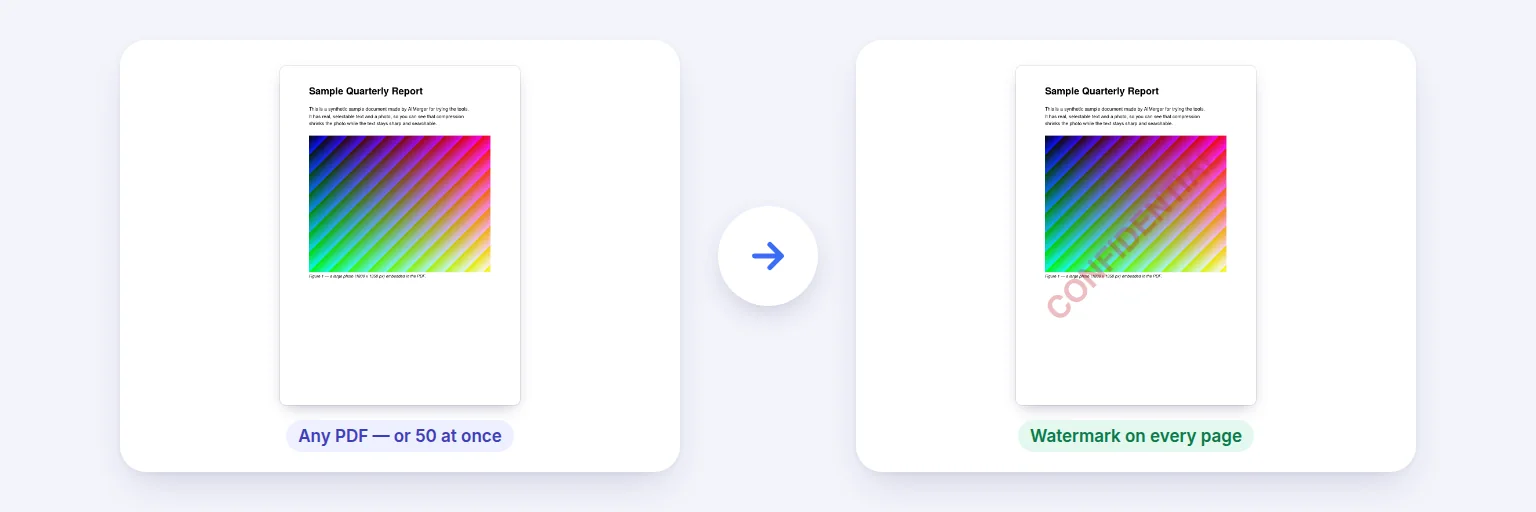
Any PDF → a diagonal CONFIDENTIAL watermark on every page (or a logo, stamp or Bates number).
Stamp “CONFIDENTIAL”, “DRAFT”, your logo or an “APPROVED” badge on one PDF or a whole batch. Choose the position, size, opacity, angle and which pages — or tile it across the page — and see a real preview first. Add page numbers, dates, file names or Bates numbers to the text.
One file or a whole batch — they are all stamped the same way.
💧 Drop PDFs here, or tap to choose
One PDF or a batch — up to 50 at once, each stamped the same way
🔏 A digitally signed PDF is included: stamping changes the file, so its digital signature will no longer be valid (the visible signature stays).
The preview is a real stamped page, made exactly the way your files will be.
You can use {page}, {pages}, {file}, {date} and {bates} — e.g. “Copy for review · page {page} of {pages}”.
Behind the content, a watermark is hidden by any picture or white background on the page — scanned pages will hide it completely.
Bates numbers — {bates} counts every stamped page across all PDFs, in the order listed.
Saved stamps are kept in this browser’s storage on this device only — never uploaded. Clearing site data removes them.
Download each file, or all of them as one ZIP.
🔒 Stamped on your device. No upload, no account, no watermark of ours.
Up to 50 PDFs and about 500 MB in total on a computer, less on phones. Watermarks use the standard PDF fonts; text those fonts can’t write (Hindi, Telugu, emoji) is drawn as a sharp picture. A watermark can be removed by someone with a PDF editor — for security, use it together with sharing controls, not instead of them. Password-protected PDFs need the password removed first.
Any PDF → a diagonal CONFIDENTIAL watermark on every page (or a logo, stamp or Bates number).
Add one or more PDFs. They are stamped in the order listed (that matters for Bates numbers).
Choose Text watermark, Logo / image or Stamp badge, then set the text or image, colour, rotation and opacity. The preview on the right is a real stamped page.
Pick the position on the 3 × 3 grid — or tick Repeat it across the whole page — and choose which pages get it: all, first, last, odd, even or a list.
Press Stamp PDFs. Download each file, or all of them as one ZIP.
💡 Tip: A light grey or red watermark at 20–30% opacity, 45°, is readable without hiding the text. For “page 3 of 10” style stamps use the text Page {page} of {pages}.
Text watermarks are written with the standard PDF fonts, so they stay sharp at any zoom and add very little to the file size. “Fit the page” sizes the text so it spans the page at the angle you choose, on every page size in the batch. Logos keep their transparency; SVG logos are cleaned and saved at high resolution. Stamp badges are vector rounded boxes with bold text and an optional second line such as a date.
Variables make each page different: {page}, {pages}, {file} (the file name), {date} (today) and {bates} — a running number across every stamped page of every file, with your prefix and number of digits, as used for legal and audit documents.
By default the watermark is drawn on top of the page at the opacity you choose, so it is visible even on scanned pages. In Advanced you can put it behind the content instead — it then looks printed underneath the text, but any picture or white background on the page (such as a scan) will hide it.
The pages are not turned into images: text, links and form fields stay as they were. A digitally signed PDF will no longer have a valid signature after stamping. Remember that a watermark is a label, not protection — anyone with a PDF editor can remove it.
Use the same stamp often? Save it (text, colours, position and pages) in Saved stamps. It is kept in this browser’s storage on your device only — nothing is uploaded — and you can delete it any time. Logo stamps are not saved, so your logo never stays on the device after you close the page.
Add the PDF, type the watermark text (or choose a logo), set the opacity and angle, and press Stamp PDFs. Download the result — free, without our watermark and without uploading.
Yes. Add up to 50 PDFs; each gets the same watermark and you can download them all as one ZIP.
Yes. Choose Logo / image and pick a PNG, JPG or SVG. A PNG with a transparent background looks best. Set its width as a percentage of the page.
Yes — first page, last page, odd or even pages, all except the first, or a list like 1-3, 6, 9-.
Put {bates} in the text (for example “ABC {bates}”), and in Advanced set the prefix, starting number and digits. Numbers continue across all PDFs in the order listed.
Yes — tick “Put it behind the page content” in Advanced. On scanned pages a watermark behind the content is hidden by the scan, so keep it on top there.
No. Stamping happens in your browser on your device.
Free tools that pair well with this one.