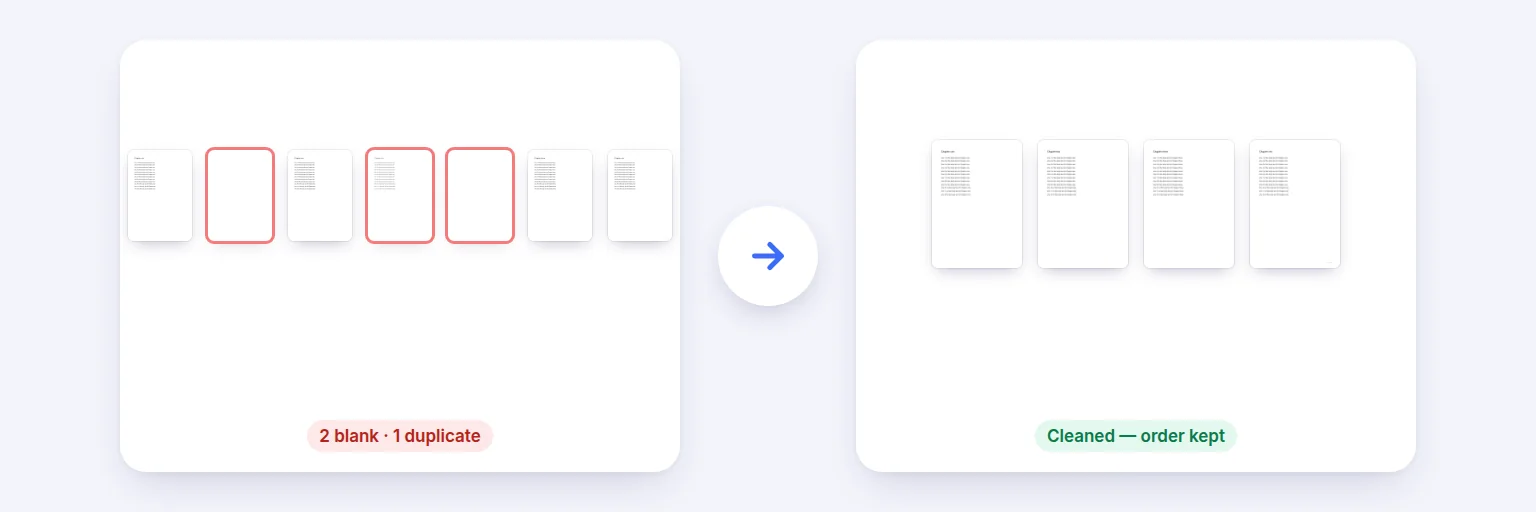
Seven scanned pages → blank and duplicate pages found, reviewed and removed.
Double-sided scans are full of blank backs; batch scans pick up separator sheets and pages fed twice. This finds blank and nearly blank pages (ignoring scanner edges and specks) and pages that are exact or near copies of earlier ones, shows them side by side, and removes only what you tick.
Every page is looked at on your device: its text, how much ink it has, and a visual fingerprint.
🧹 Drop a PDF to clean, or tap to choose
Scans with blank backs, separator sheets or pages scanned twice
Blank pages and exact duplicates are ticked; near duplicates are only suggested. Nothing is removed until you press the button.
Kept pages stay in order with their text, links and bookmarks. The removed pages can be downloaded separately to double-check.
🔒 Checked and cleaned on your device. Nothing is uploaded.
PDFs up to about 1,500 pages on a computer, less on phones (every page is rendered once, small). A page with only a page number or a faint header may count as “nearly blank” on relaxed sensitivity — review before removing. Password-protected PDFs need the password removed first.
Seven scanned pages → blank and duplicate pages found, reviewed and removed.
Add the PDF. Every page is rendered small and checked for text, ink and a visual fingerprint.
Look at the results: blank pages and exact duplicates are ticked, near duplicates are suggested with a similarity score. Change any tick; adjust the blank-page sensitivity if faint pages are missed or kept.
Press Remove ticked pages.
Download the cleaned PDF — and, if you like, the removed pages as a separate PDF to double-check.
💡 Tip: For scans with faint show-through from the back of the paper, keep the sensitivity on Normal or Strict; Relaxed is for pages that have only a small mark, like a page number.
A page counts as blank when it has no real text and almost no ink. “Ink” is measured on a rendered copy of the page with a 4% margin ignored, so scanner edges, shadows and punch holes don’t count, and with a darkness threshold so faint show-through from the other side of the paper is ignored. The sensitivity slider moves the ink limit from very strict to relaxed; the ink percentage is shown on every blank page.
Each page gets a visual fingerprint and its text is compared with every earlier page. Identical text and fingerprint = exact duplicate (ticked). Very similar text and fingerprint — the same page scanned twice, slightly shifted or with a stamp — = near duplicate, shown with a similarity score but not ticked, because two similar forms may both be needed. The first copy is always the one kept.
Only the ticked pages are removed: the rest stay in order with their text, links, bookmarks and form fields. A digitally signed PDF loses the validity of its signature when pages are removed — the tool warns you.
Add the PDF above. Blank pages are found and ticked automatically; check them and press Remove ticked pages, then download the cleaned PDF.
Not on Normal sensitivity — pages with text are never treated as blank, and a small mark stays under the ink limit only on Relaxed. Every removal is shown before it happens.
Yes. Exact duplicates (same text and appearance) are ticked; near duplicates (the same page scanned twice) are suggested with a similarity score.
Yes. Blank detection uses the page’s appearance, so it works on scans without text; duplicate detection uses the fingerprint (and text where there is some).
Yes — download “Removed pages” as a separate PDF to check them. Your original file is never changed.
No. Everything happens in your browser on your device.
Free tools that pair well with this one.