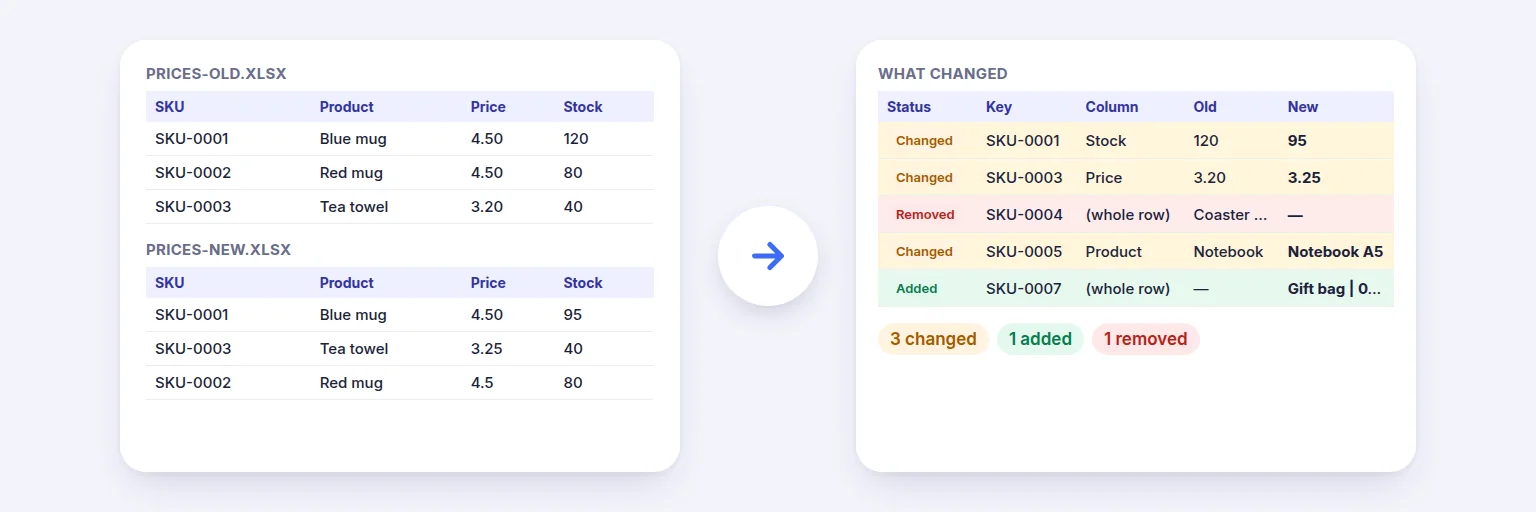
An old and a new price list → every added, removed and changed cell.
See exactly what changed between two versions of a spreadsheet: rows added, rows removed, and every changed cell with its old and new value. Rows are matched by an ID or key column, so sorting or inserting rows doesn’t create false differences.
Excel or CSV — pick the sheet and the header row for each.
Old file (before)
📊 Drop the old file or tap to choose
Excel .xlsx/.xls, .ods or CSV
New file (after)
📊 Drop the new file or tap to choose
Excel .xlsx/.xls, .ods or CSV
Pick a key column so moved or re-sorted rows still match.
Every change is labelled in words, not only colours.
🔒 Both files are compared on your device. Nothing is uploaded.
Up to about 80 MB per file and a few million cells on a computer (less on phones). Formulas are compared by their last calculated values. Rows whose key appears more than once are listed but not compared, so they are never matched to the wrong row.
An old and a new price list → every added, removed and changed cell.
Add the old file and the new file (Excel or CSV) and pick the sheet and header row for each.
Choose a key column that identifies each row — an ID, SKU, email or invoice number. Add a second key column if needed, or compare by row position if the files have no ID.
Tick the columns to compare and set the options: ignore spaces or case, how to treat blanks, and a numeric tolerance for prices or measurements.
Press Compare files. Filter the results (added, removed, changed…) and download a colour-coded Excel report or CSV lists.
💡 Tip: Comparing price lists or stock reports? Set a numeric tolerance (for example 0.01) so rounding differences don’t show up as changes, and keep “Compare numbers by value” on so 1.50 and 1.5 count as equal.
Simple “compare” tools line rows up by position, so a single inserted row makes every row below it look different. When you choose a key column, each row in the new file is matched to the row with the same key in the old file, wherever it is. Rows whose key appears more than once are listed separately and not compared, so they can never be matched to the wrong row. Comparing by position is still available — and clearly labelled — for files without an ID.
Values are compared as you see them; formulas are compared by their last calculated values. IDs keep their leading zeros, and long numbers are never rounded. Columns with different names in the two files can be paired by hand. Cell colours and formatting are not compared. Very large workbooks are limited by your device’s memory — a computer handles a few million cells.
Add the old and new files above, choose the ID column that identifies each row, and press Compare files. You’ll see added, removed and changed rows, with old and new values for every changed cell, and can download a colour-coded report.
Yes. Add the same file twice and pick a different sheet for the old and the new side.
Not when you compare by a key column — rows are matched by their ID, wherever they are. Comparing by row position is an option for files without an ID.
Those rows are flagged as “duplicate key” and listed, but not compared, so nothing is matched to the wrong row. Fix the duplicates or add a second key column.
Yes. Set a numeric tolerance — for example 0.01 — and differences within it are treated as equal. You can also ignore spaces and upper/lower case.
No. Both files are compared in your browser on your device.
Free tools that pair well with this one.