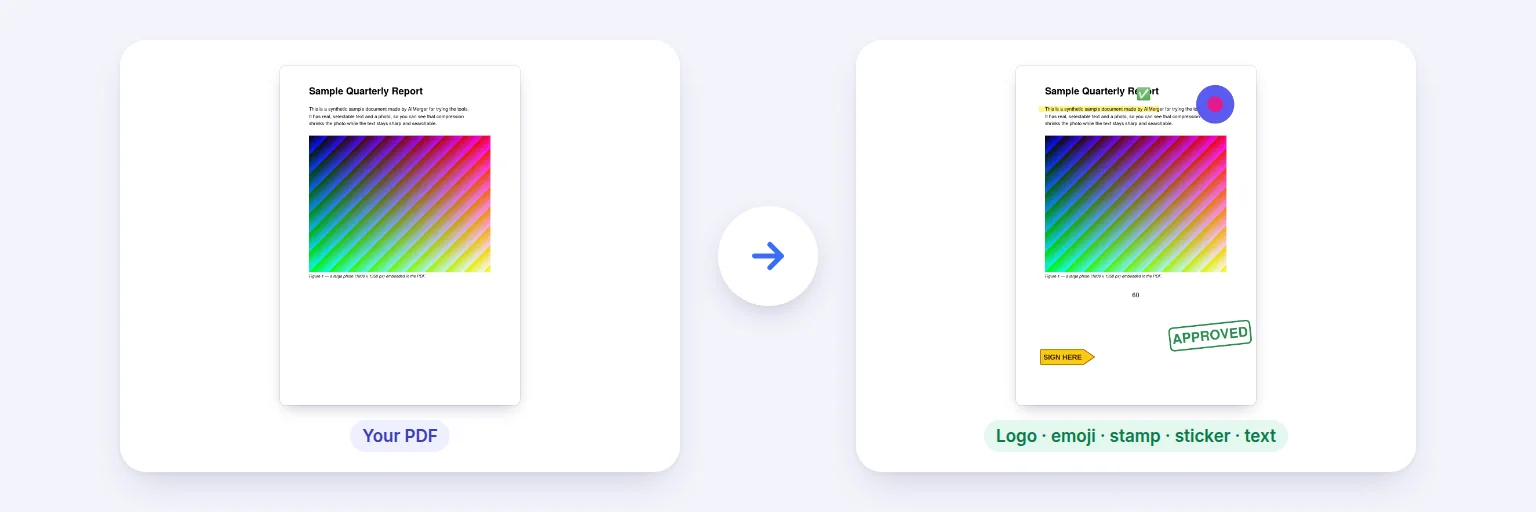
A sample report → logo, emoji, highlight, stamp, “Sign here” sticker and a note added — the original text untouched.
Open a PDF, then place pictures, SVG logos, emoji, stickers, text, boxes, arrows, highlights, stamps or a drawn signature anywhere on any page. Drag, resize, rotate, change opacity and layer order, copy an item to other pages, undo and redo — then save. The original pages are not redrawn, so text stays selectable and the file stays sharp.
Any PDF — rotated and cropped pages are handled. Nothing is uploaded.
🖼️ Drop a PDF here, or tap to choose
Then add images, logos, emoji, stickers, text, shapes and stamps to any page
Drag to move, use the corner handles to resize and ⟳ to rotate. Everything is editable until you save.
Noto Emoji by Google (Apache License 2.0), bundled with this site.
This places a picture of your signature. It is not a certified digital (cryptographic) signature.
Your items are drawn on top of the original pages. The rest of the PDF — text, links, bookmarks — is kept as it was.
🔒 Edited on your device. No upload, no account, no watermark.
PDFs up to about 250 MB and 1,500 pages on a computer, less on phones. Images larger than 5,000 px are scaled down to 5,000 px. SVG logos, emoji and stickers are saved as high-resolution pictures (300 DPI at the size you place them). Text uses the standard PDF fonts (Helvetica, Times, Courier); characters those fonts can’t write — Hindi, Telugu, emoji in text — are saved as sharp pictures. Password-protected PDFs need the password removed first.
A sample report → logo, emoji, highlight, stamp, “Sign here” sticker and a note added — the original text untouched.
Tap the box and choose your PDF (or drop it in). The first page opens in the editor, with page thumbnails beside it.
Use the toolbar to add an Image (JPG, PNG, WebP, iPhone HEIC), an SVG logo, an Emoji, a Sticker, Text, a Box, Circle, Line or Arrow, a Highlight, a Stamp or a drawn signature.
Drag the item into place. Use the corner handles to resize, the ⟳ handle to rotate, and the panel on the right for exact position, size, colour, opacity and layer order. “Put it on other pages too” copies it to all, odd, even or chosen pages.
Press Save PDF, check the preview of the saved page, then Download PDF.
💡 Tip: For a logo on every page, add it once, size it, then open “Put it on other pages too” and choose All other pages. For a light background watermark on many files at once, use Add Watermark to PDF.
Many online editors turn every page into a picture when you add something, which makes text unselectable and files larger. This editor only adds your items to the pages: text, links, bookmarks, form fields and page sizes stay as they were. Positions are worked out from each page’s crop box and rotation, so an item lands exactly where you put it even on landscape or rotated pages.
Digitally signed PDFs: any change creates a new file, so a digital signature will no longer be valid — the editor warns you. Covering is not redacting: a white box or an image placed over text hides it visually, but the text is still in the file and can be selected or found by search. To remove confidential information, edit the original document.Every item can be selected with the Tab key and moved with the arrow keys (Shift for bigger steps); [ and ] rotate, + and − resize, Delete removes, Ctrl+D duplicates and Ctrl+Z undoes. Exact position, size and rotation can also be typed in the settings panel. On phones and tablets, drag with a finger; the handles are larger on touch screens.
Open the PDF above, press Image in the toolbar and choose a picture. Drag it into place, resize it with the corner handles, then press Save PDF and download. It is free, with no watermark and no upload.
Yes. Place it on one page, then open “Put it on other pages too” and choose All other pages (or odd, even or a page list). Copies keep the same size and relative position.
Yes. Press Text, type in the settings panel, and choose the font, size, colour, alignment and an optional background. It is saved as real, selectable text.
Yes — over a thousand Noto Emoji and a set of document stickers (sign-here flags, tick and cross badges, sticky notes and more) are built in. They look the same on every device.
No. Your items are added on top of the existing pages; the original text, links, bookmarks and form fields are kept. The pages are not turned into images.
You can cover text with a white box, but that only hides it visually — the text is still in the file and can be copied or searched. It is not redaction.
The editor adds a picture of your signature. Whether that is accepted depends on who you send it to; it is not a certified digital signature.
No. Everything happens in your browser on your device — the PDF, your images and the result never leave it.
Free tools that pair well with this one.