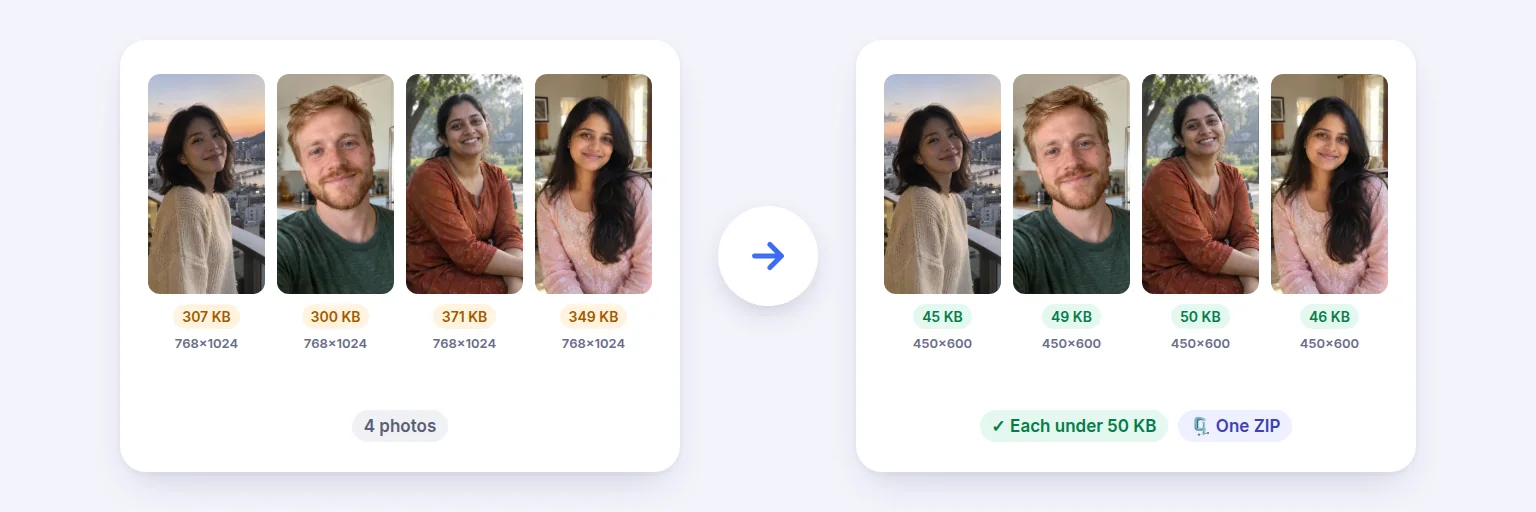
Four 300 KB photos → 450 × 600 px, each under 50 KB, in one ZIP.
Resize dozens of photos at once, convert them between JPG, PNG and WebP, compress them by quality or to a maximum size such as 20 KB, 50 KB or 100 KB, and rename them in sequence. Each file shows its new size and dimensions, and you download them one by one or as a ZIP.
Each image is processed separately — one failure never stops the rest.
🖼️ Drop images here, or tap to choose
JPG · PNG · WebP · iPhone HEIC · GIF (first frame) · BMP — up to 300 at once
Sensible defaults: same size and format, quality 85%, original names.
JPG has no transparency: transparent areas are filled with the background colour.
“Same format” keeps JPG, PNG and WebP; HEIC, GIF and BMP are saved as JPG.
🧾 Metadata: images are re-encoded, so camera details and GPS location (EXIF) are removed. Photos are turned upright first using their EXIF orientation.
See every file’s new size and dimensions, then download one by one or as a ZIP.
| Preview | File → new name | Original | Result | Status | Actions |
|---|
🔒 Resized and converted on your device (in background workers where supported). Nothing is uploaded.
Up to 300 images and about 800 MB at once on a computer, less on phones. Very large pictures (over ~100 megapixels) may be refused. WebP saving needs a recent browser; Safari before version 16 cannot save WebP.
Four 300 KB photos → 450 × 600 px, each under 50 KB, in one ZIP.
Tap the box and choose your images — JPG, PNG, WebP, iPhone HEIC, GIF or BMP.
Choose how to resize: keep the size, a width × height (fit, fill or exact size with borders), a percentage, or the longest side. Smaller images are never enlarged unless you allow it.
Pick the output format and compression — a quality level, or a maximum size per image (20, 50, 100 KB…). Add a prefix, suffix or numbers to rename them.
Press Process images. Check the table, then download single files or Download all as ZIP.
💡 Tip: Forms that ask for a photo “under 50 KB” usually also limit its dimensions. Choose “Longest side” 600–800 px together with a 50 KB limit — the result stays sharp because the quality doesn’t have to drop as far.
Photos from phones store their rotation separately (EXIF orientation). The tool turns every photo upright before resizing, so nothing comes out sideways.
With a maximum file size, the tool tries high quality first and lowers it step by step until the image fits. If an image can’t get under the limit at its current dimensions, it is marked ⚠️ with the smallest size reached — choose smaller dimensions and run it again. PNG is lossless, so it can’t be squeezed to a target; choose JPG or WebP for that. Converting a transparent PNG to JPG fills the transparency with a background colour you choose.
Images are processed on your device, in background workers where your browser supports them, so even a few hundred photos don’t freeze the page. Nothing is uploaded. Because every image is re-encoded, camera details and GPS location stored in EXIF are removed from the results — handy before sharing photos online. Each file is handled separately: if one is damaged, the rest still finish.
Add them above, choose a resize mode (for example “Longest side: 1600 px”), and press Process images. Download each one or all of them as a ZIP.
Choose “Maximum file size per image”, type 50 (or tap the 50 KB button) and process. If an image can’t reach the limit at its current size, reduce its dimensions too — the table tells you which ones.
Yes. Choose “Save as: JPG”. iPhone HEIC photos, PNG, WebP, GIF (first frame) and BMP are all converted.
No — smaller images are never enlarged unless you tick “Allow enlarging”.
Yes. Images are re-encoded, so EXIF metadata including GPS location is not copied to the results. Orientation is applied first, so photos stay upright.
No. All resizing and conversion happens in your browser, on your device.
Free tools that pair well with this one.