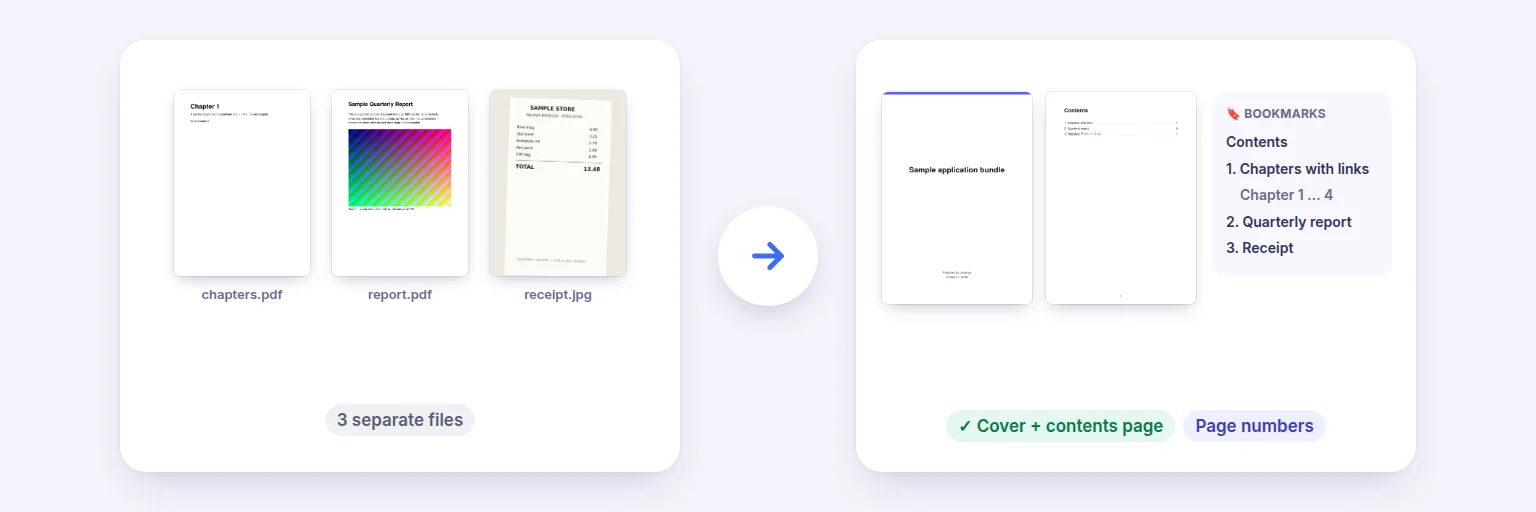
Three separate files → one PDF with a cover, a clickable contents page and bookmarks.
Turn a pile of PDFs and scans into one organised document: name each section, add a cover page, a clickable contents page, bookmarks and page numbers. Ideal for court and tender bundles, visa and loan applications, reports and portfolios.
Put them in order and give each section a clear name — it is used in the contents page and bookmarks.
📚 Drop PDFs and images here, or tap to choose
Each file becomes a section — rename it below
🔏 Digitally signed files: the signature will not be valid in the bundle (the visible signature stays).
Contents page numbers are worked out after the final layout, even when the contents run over several pages.
You see the contents and the first pages before downloading.
🔒 Built on your device. Nothing is uploaded.
Up to 50 files and about 1,500 pages on a computer, less on phones. Cover and contents text in non-Latin scripts is drawn as an image (sharp, but not selectable). Links inside your files that jump to another page are kept; links that cannot be resolved are removed and counted. Password-protected PDFs need the password removed first.
Three separate files → one PDF with a cover, a clickable contents page and bookmarks.
Add your PDFs and images. Each file becomes a section — drag or use ▲ ▼ to order them and give each a clear name.
Choose a cover page (title, subtitle, date, prepared by), a contents page, bookmarks and page numbers. Decide whether the cover and contents pages count toward the numbering.
Press Build bundle. Check the contents list and the first pages.
Download the bundle. Click any line on the contents page — or any bookmark — to jump to that section.
💡 Tip: Name sections the way a reader will look for them — “3. Bank statements (Jan–Mar)” — not like file names. The names become both the contents lines and the bookmarks.
The tool first works out the whole layout — cover, however many contents pages are needed, and every section — and only then writes the page numbers into the contents, so they are always right, even when the contents run over two or more pages. Each line is a link to its section, and the same sections appear as bookmarks in the sidebar of any PDF reader.
Page numbers can count the cover and contents pages, or start at 1 on the first section (the front pages then get i, ii…). The PDF’s own page labels are set to match, so the page box in your PDF reader shows the same numbers as the pages.
Pages are copied as they are: text stays selectable and form fields keep their values. Bookmarks already in a file are kept, nested under its section name. Links inside a file that jump to another of its pages are re-pointed so they still work; links that can’t be resolved are removed and counted in the result message, and web links are untouched. Digitally signed PDFs lose the validity of their signature in any merged document — the visible signature stays.
Cover and contents text uses a standard Latin font; names in other scripts (Hindi, Telugu…) are drawn as sharp images, so they display correctly but can’t be selected or searched. Password-protected PDFs need the password removed first. Very large bundles are limited by your device’s memory — a computer handles well over a thousand pages.
Add your PDFs, name each section, keep “Add a contents page” ticked and press Build bundle. The contents page lists every section with its page number, and each line is clickable.
Yes. They are calculated after the final layout — including when the contents take more than one page — and match the page numbers printed on the pages.
Yes. They are kept and nested under the section name for that file.
Links that jump to another page of the same file are re-pointed to the right page in the bundle. Web links are kept. Links that can’t be resolved are removed and counted.
Yes. Leave “Cover and contents pages count” unticked: the front pages get i, ii and the first section starts at 1. You can also choose any first number.
No. The bundle is built in your browser on your device.
Free tools that pair well with this one.