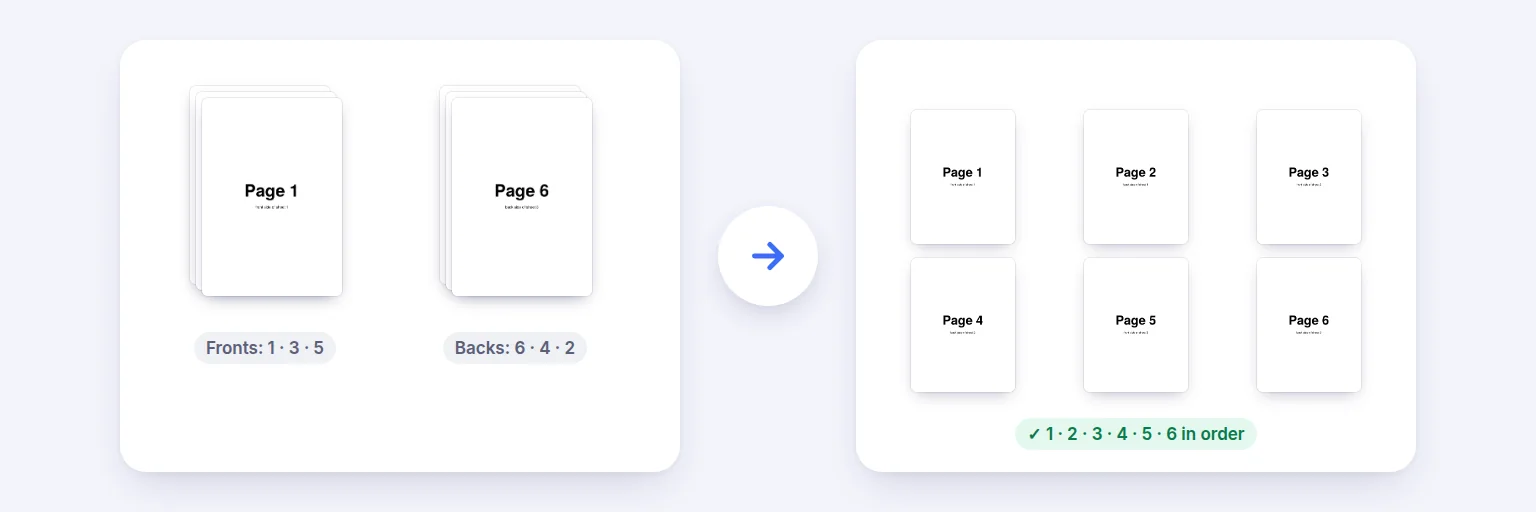
Fronts 1 · 3 · 5 and backs scanned as 6 · 4 · 2 → pages 1 to 6 in order.
Scanned the fronts of a stack of double-sided pages, then turned it over and scanned the backs? Add both PDFs (or one PDF with fronts first) and get one document in the right order — front 1, back 1, front 2, back 2… — with a preview before you save.
Fronts and backs as two PDFs, or one PDF with all the fronts first.
Fronts (odd pages: 1, 3, 5…)
📄 Drop the fronts PDF
or tap to choose
Backs (even pages: 2, 4, 6…)
📄 Drop the backs PDF
or tap to choose
🔏 A digitally signed PDF changes when pages are re-ordered — the signature will not be valid in the result.
Every page is labelled F (front) or B (back) with its original page number.
💡 Most sheet-fed scanners give you the backs in reverse order (last page first) — if the preview shows that, tick “Reverse the backs”.
Page sizes and orientation are kept exactly.
🔒 Pages are re-ordered on your device — nothing is uploaded.
Up to about 1,500 pages and 500 MB per PDF on a computer, less on phones. Password-protected PDFs need the password removed first.
Fronts 1 · 3 · 5 and backs scanned as 6 · 4 · 2 → pages 1 to 6 in order.
Choose whether you have two PDFs (fronts and backs) or one PDF with all the fronts followed by all the backs, and add the file(s).
Look at the preview. If the backs come out in reverse (common with sheet-fed scanners), tick Reverse the backs. Each page is labelled F or B with its original page number.
Decide what happens if one side has more pages: keep the extras at the end (default), insert blank pages, or stop at the shorter side — any left-out pages are listed first.
Press Interleave pages and download the PDF. Page sizes and orientation are kept exactly.
💡 Tip: Scanning a two-sided document on a scanner without duplex? Scan the stack face up, flip the whole stack over, scan again — then use this tool with “Reverse the backs” ticked.
Simple document feeders scan only one side. The usual workaround — scan the fronts, flip the stack, scan the backs — leaves you with two files, and the second one is usually backwards (page 6, 4, 2). Interleaving alternates the pages from the two files so the result reads 1, 2, 3, 4, 5, 6. This tool does that with a live preview of the exact order, so you can fix a reversed side before saving.
If the last sheet has no back, or a page was missed, one file has more pages. By default the extra pages are kept at the end, so nothing is ever thrown away. For double-sided printing you can insert blank pages instead, which keeps every front paired with a back. Choosing to stop at the shorter side lists the pages that will be left out before you save — never silently.
Pages are copied as they are — text stays selectable, and each page keeps its size and orientation. Password-protected PDFs need the password removed first. If your result needs further tweaks, continue in Organize PDF; if it is too large to email, use Merge & Compress.
Add the PDF with the odd pages (fronts) and the PDF with the even pages (backs), check the preview, and press Interleave pages. You get one PDF in the order 1, 2, 3, 4…
Tick “Reverse the backs”. That is normal for sheet-fed scanners, which scan the flipped stack from the last page to the first.
Choose “One PDF”. We split it in the middle automatically; you can change where the backs start.
By default the extra pages are kept at the end. You can insert blank pages instead, or stop at the shorter file — in that case the pages left out are listed before you save.
Yes. Pages are copied unchanged, including landscape pages, and text stays selectable.
No. The pages are re-ordered in your browser on your device.
Free tools that pair well with this one.