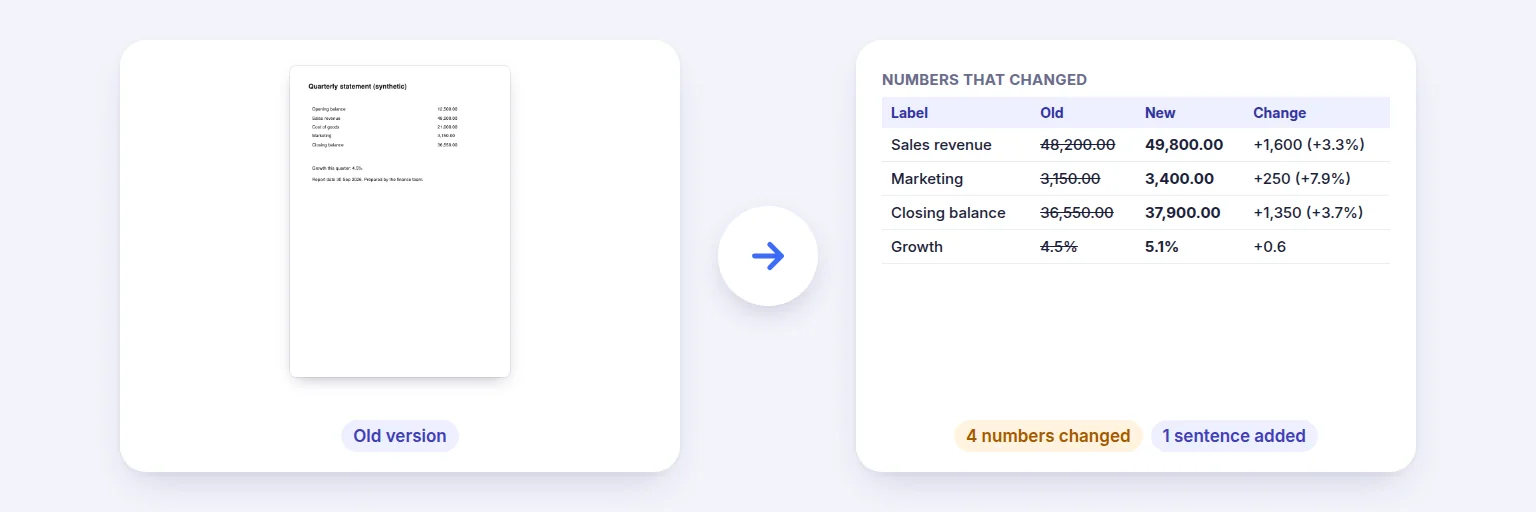
Two versions of a statement → every changed number with its label and difference.
Got a revised statement, quote, invoice or contract? Compare it with the previous version: every number that changed is listed with its label (“Sales revenue: 48,200.00 → 49,800.00, +1,600 (+3.3%)”), followed by every added, removed or reworded passage, side-by-side highlighted pages, a CSV report and a highlighted copy of the new PDF.
Two versions of a statement, invoice, price list, contract or report.
Old version
📄 Drop the old PDF
or tap to choose
New version
📄 Drop the new PDF
or tap to choose
Numbers are compared by value by default, so formatting alone isn’t a change.
Numbers first — with labels, old and new values and the difference — then every text change.
🔒 Both PDFs are compared on your device. Nothing is uploaded.
Works on PDFs with selectable text — scanned pages need Make PDF Searchable first. Up to a few hundred pages per file on a computer. Comparison is by words in reading order: layout, colours and images are not compared. Very different documents are compared section by section, so moved paragraphs show as removed and added.
Two versions of a statement → every changed number with its label and difference.
Add the old PDF and the new PDF.
Keep “Compare numbers by value” on so 12,500.00 and 12500 count as the same; set a tolerance (e.g. 0.01) to ignore rounding.
Press Compare. The table lists every changed, added or removed number with its label, old and new value and the difference; tap a row to see it highlighted on both pages.
Scroll to “All text changes” for wording changes, then download the CSV report or the new PDF with changes highlighted.
💡 Tip: Comparing bank or card statements? Turn the tolerance up to 0.01 and look only at the “Numbers that changed” table — most other differences will be dates and reference numbers.
Generic PDF compare tools show a wall of coloured text. In statements, price lists, quotes, payslips and financial reports, what matters is which amounts changed and by how much. Every number is parsed — thousands separators, decimal commas, currency symbols, brackets for negatives and percentages — so you see real changes, not formatting. Each one is labelled with the words before it on the same line, and the difference is calculated in units and percent.
Both PDFs’ text is read with its position on the page, split into words and compared in reading order using an anchored diff (long unchanged passages are matched first, then the gaps between them are compared word by word). That handles inserted paragraphs and re-flowed lines far better than comparing page by page. Changes are then mapped back to their exact positions to highlight them on the pages and in the downloadable PDF.
Scanned PDFs have no text to compare; make them searchable first with Make PDF Searchable. Images, colours and layout aren’t compared — only the words and numbers.
Contracts, salary slips and financial statements shouldn’t be uploaded just to find what changed. Both files are read and compared in your browser; the report and the highlighted PDF are created on your device.
Add the old and new PDF above and press Compare. You’ll see changed numbers with old and new values, every text change, and both versions side by side with the changes highlighted.
Yes — that’s its focus. Changed, added and removed numbers are listed with their labels and the difference in value and percent.
Not by default: numbers are compared by value, so 1,000.00 and 1000 are equal. Untick the option to see formatting changes too.
Yes — a CSV report of every change, and a copy of the new PDF with changed numbers in yellow and added text in green.
Only after OCR: run the scans through Make PDF Searchable first, then compare.
No. The comparison runs in your browser on your device.
Free tools that pair well with this one.